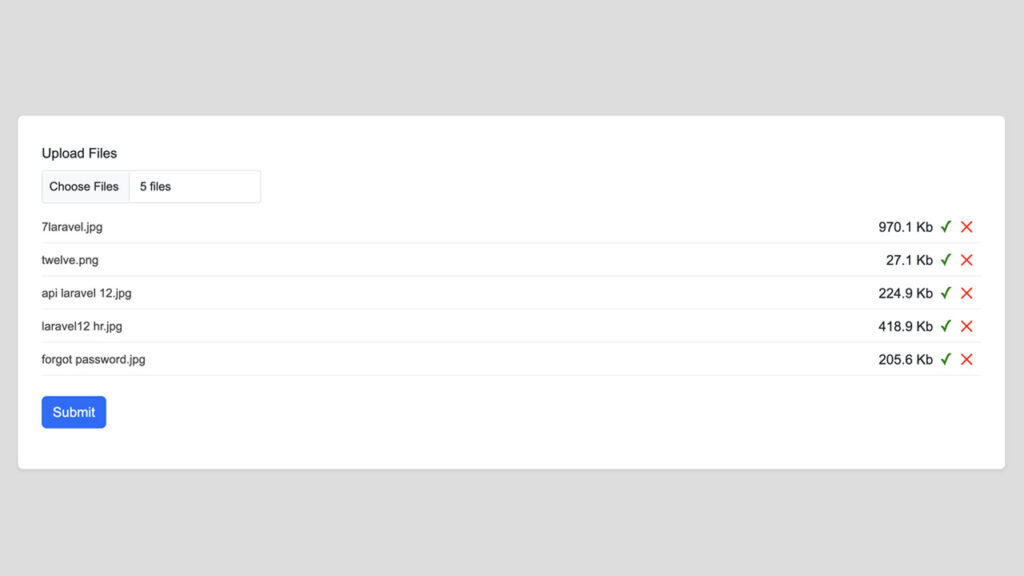
This tutorial will show you how to build a beautiful, user-friendly multi-file upload form using HTML, Bootstrap 5.3, and jQuery. This upload form allows users to select multiple files, preview the file names and sizes, and remove any file before submission — all with a sleek and modern interface.
Features
- Upload multiple files at once
- File size formatting (e.g., KB, MB)
- Duplicate file prevention
- Remove selected files before uploading
- Fully responsive using Bootstrap 5.3
Live Demo Screenshot
Full HTML Code
<!DOCTYPE html>
<html lang="en">
<head>
    <meta charset="UTF-8">
    <title>File Upload Form</title>
    <link href="https://cdn.jsdelivr.net/npm/bootstrap@5.3.3/dist/css/bootstrap.min.css" rel="stylesheet">
    <style>
        .file-row {
            display: flex;
            justify-content: space-between;
            align-items: center;
            margin-bottom: 8px;
            padding-bottom: 6px;
            border-bottom: 1px solid #eee;
        }
        .file-name {
            flex: 1;
            color: #444;
            font-size: 14px;
            overflow: hidden;
            text-overflow: ellipsis;
            white-space: nowrap;
        }
        .file-size {
            margin-left: 10px;
            font-size: 0.9em;
            color: #6c757d;
        }
        .icon {
            display: inline-block;
            font-size: 1.2em;
            line-height: 1;
            margin-left: 10px;
        }
        .icon.success {
            color: green;
        }
        .icon.remove {
            color: red;
            cursor: pointer;
        }
    </style>
</head>
<body>

<div class="container mt-5">
    <div class="card p-3 shadow-sm">
        <div class="container py-3">
            <form id="uploadForm" action="#" method="POST" enctype="multipart/form-data">
                <div class="mb-3">
                    <label for="fileupload" class="form-label">Upload Files</label>
                    <input type="file" class="form-control" id="fileupload" name="fileupload[]" multiple>
                </div>

                <div class="mb-3">
                    <div id="file-list"></div>
                </div>

                <div class="mb-3">
                    <button type="submit" class="btn btn-primary w-100">Submit</button>
                </div>
            </form>
        </div>
    </div>
</div>

<script src="https://code.jquery.com/jquery-3.7.1.min.js"></script>
<script src="https://cdn.jsdelivr.net/npm/bootstrap@5.3.3/dist/js/bootstrap.bundle.min.js"></script>

<script>
    const $input = $('#fileupload');
    const $list = $('#file-list');
    const files = [];

    const formatSize = bytes =>
        bytes < 1024 ? `${bytes} B` : `${(bytes / 1024).toFixed(1)} Kb`;

    $input.on('change', function () {
        Array.from(this.files).forEach(file => {
            const exists = files.some(f => f.name === file.name && f.size === file.size);
            if (!exists) {
                files.push(file);
            }
        });
        this.value = null;
        renderFileList();
    });

    $list.on('click', '.remove', function () {
        const index = $(this).data('idx');
        files.splice(index, 1);
        renderFileList();
    });

    function renderFileList() {
        const dataTransfer = new DataTransfer();
        $list.empty();

        files.forEach((file, index) => {
            dataTransfer.items.add(file);
            $list.append(`
                <div class="file-row">
                    <span class="file-name">${file.name}</span>
                    <span class="file-size">${formatSize(file.size)}</span>
                    <span class="icon success">✓</span>
                    <span class="icon remove" data-idx="${index}">✕</span>
                </div>
            `);
        });

        $input[0].files = dataTransfer.files;
    }
</script>

</body>
</html>
How It Works
- HTML & Bootstrap:
- The form uses Bootstrap’s grid system and form components to create a clean UI.
- The file input allows multiple file selection (
multipleattribute).
- JavaScript with jQuery:
- When files are selected, the script stores them in a
filesarray. - It prevents duplicate files by checking the name and size.
- File names, sizes, and a “remove” icon are shown in a styled list.
- Users can remove files from the list before submitting.
- A an
DataTransferobject is used to update the backendinput.filesso that backend still receives the correct files.
- When files are selected, the script stores them in a
Customization Ideas
- Add image thumbnails for preview
- Limit file types (e.g., only
.jpg,.pdf) - Add drag-and-drop support
- Show total file size
- Add server-side upload handling with PHP, Laravel, or Node.js
Conclusion
This file upload form gives users full control over the files they’re submitting while maintaining a modern and mobile-friendly layout. It’s great for any kind of upload interface — from simple forms to complex media submissions.